
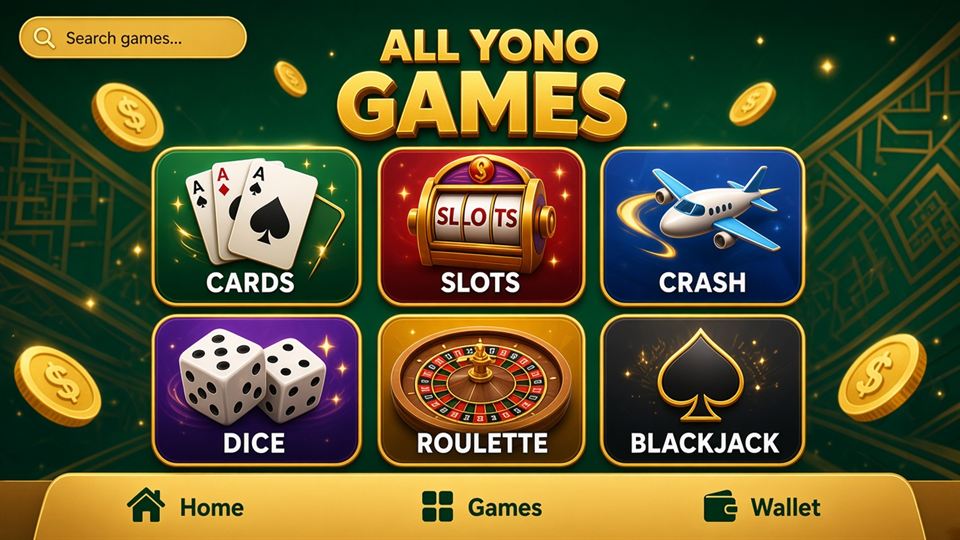
All Yono Games on the screen
How to download and install All Yono Games
Use the button on this page to download the All Yono Games game. The file is an Android package, 34MB, version 1.1.6.
Download All Yono Games
Tap the button on this page. It opens the address where the APK is.
Save the All Yono Games APK
Wait until the phone has finished saving the APK, then open that file.
Allow the All Yono Games install
If the phone asks about an unknown source, allow this install once, following the system prompt.
Open the All Yono Games app
When the install finishes, open the app from the home screen, then register an account as the next section says.
How to register for All Yono Games
Open registration for All Yono Games
After you open the app, tap Register. Do not submit the form twice.
Enter your mobile number for All Yono Games
Use your own mobile number to receive the code, then set a login password.
Check the account, then open All Yono Games
Check that the account is open, then choose the game you want to play.
How to log in to All Yono Games
Log in to All Yono Games with your mobile number
If you already have an account, tap Log in. Enter the mobile number and password you used when you registered.
If you forget the All Yono Games password
Tap Forgot password. Use the same mobile number to receive a code, then set a new password. Do not submit it twice.
All Yono Games details
| Game | All Yono Games |
|---|---|
| Category | Casual |
| Version | 1.1.6 |
| APK size | 34MB |
| System | Android |
| Language | English and Hindi. You switch them inside the app. |
| Age | 18+ |
| Price | All Yono Games is free to download |
What All Yono Games is like
- It opens as a lobby. Game tiles sit in the middle, a search box sits above, and Home, Games, and Wallet sit below.
- You can search for a name, or tap a tile. The name on a tile is the name written in the app.
- After you tap a tile, wait until it opens, then follow that game's own play.
- The lobby does not deal cards, and it does not spin reels. This page only explains how to leave the lobby and enter a game.
Why play All Yono Games
All Yono Games may appeal to players who like to look along a row of tiles, then pick one to enter. A search or a tap takes you to the next game.
You enter the lobby, find a tile, and open it. After it opens, you play by that game's own rules, and this lobby step is done.
How to play All Yono Games
-
See the lobby first
When you open the app, look at the game tiles in the middle, then find the search box above and Home, Games, and Wallet below. Do not open any tile yet.
-
Search first, or scan first
If you know the name, tap the search box and type it. If you do not, look down through the tiles. What the search returns, and the names on the tiles, are the names written in the app.

Search for the name first -
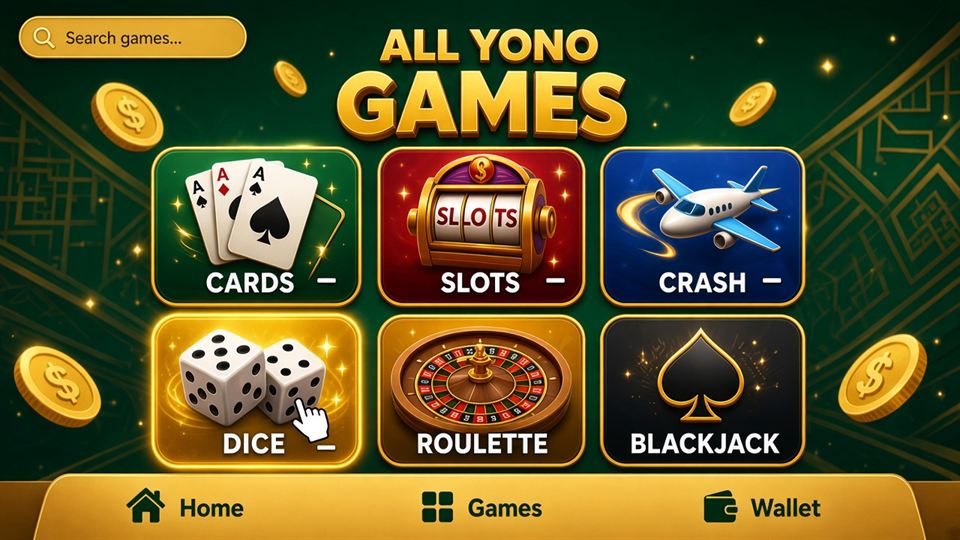
Tap this tile
When you find the tile you want, tap it once. The tile lights up to show it is selected.
Tap this tile -
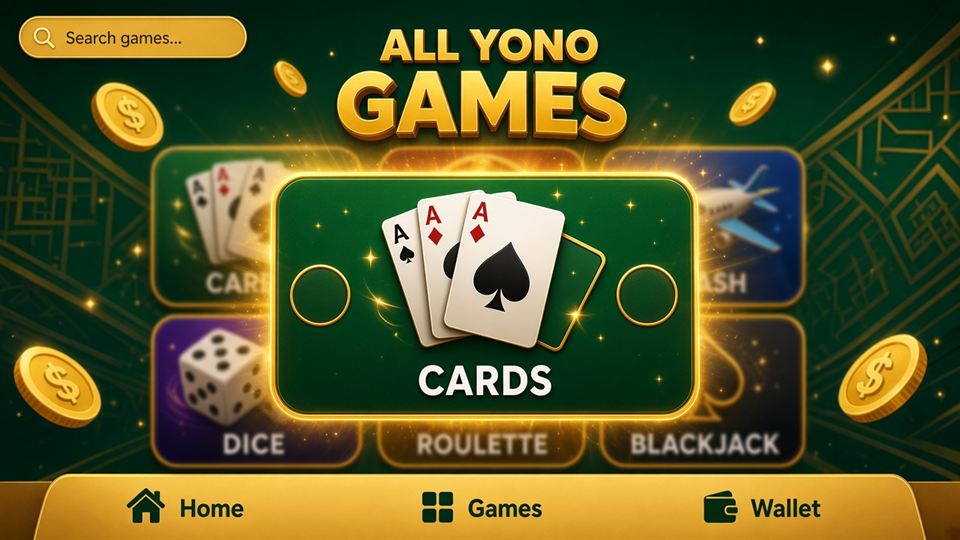
Wait until it opens, then go in
After you tap, wait until this tile opens. When it opens, you are inside that game, and this lobby step ends. How that game is played is in that game's own notes.
You are inside that game
Playing All Yono Games well
What to do
- If you remember the name clearly, use the search box first. When there are many tiles, a search is quicker than a scan.
Search first - Read the name on the tile before you tap. If you tap the wrong tile, go back to the lobby and tap the right one.
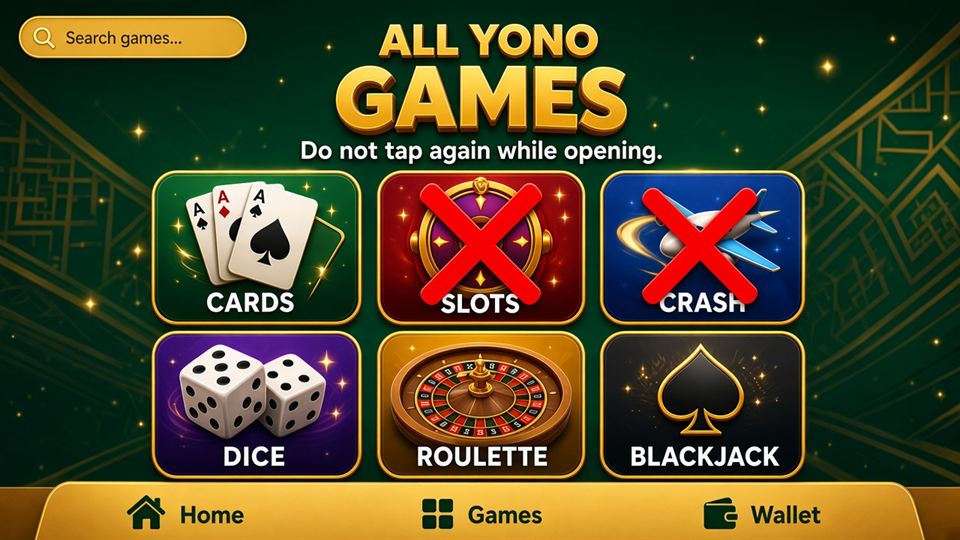
Read the name first - If you want another game after one has opened, go back to the lobby and tap the next tile. Do not tap again before the first one has opened.
What not to do
- Do not tap again while the tile is still spinning. This tile has to open first.
Wait until it opens - Do not tap at random before you have read the name. A wrong tap means you go back to the lobby and start again.
- Do not treat the lobby as a card table. The lobby only opens a game. Cards and reels are inside the game you open.
Rules of All Yono Games
- What is in the lobby
-
- Game tiles sit in the middle.
- A search box sits above.
- Home, Games, and Wallet sit below.
- How you enter a game
-
- You can search for a name, or tap a tile.
- Tap one tile at a time.
- After you tap, wait until that tile opens.
- After it opens
-
- You are inside that game, and you follow that game's own play.
- How that table counts, and what it asks you to put in, is written on that game and on that table. This page does not state that figure.
- Switching games
-
- Go back to the lobby, then tap the next tile.
- Do not tap again while the previous tile has not opened.